Event Badge Maker: Create Printable Name Badges with QR Codes

Manually creating event badges wastes hours: typing attendee names into templates one by one, printing test badges to get formatting right, scrambling to print last-minute registrations, hand-writing names for walk-ins. Professional events need professional badges—printed name tags with attendee photos, company names, and scannable QR codes for session tracking and networking. An event badge maker automates the entire process: attendees submit their information and photo through a registration form, unique QR code badges generate automatically, and you print professional name badges on demand.
QR Sage combines event registration with printable badge creation—when attendees register for your conference, workshop, or corporate event, they upload their headshot and complete their profile. The system generates a unique QR code for each attendee and creates a printable badge template with their photo, name, company, and QR code. Print badges on arrival, scan QR codes for session check-in, and track networking activity—all from one event badge maker platform. This step-by-step guide shows you how to set up professional event badges with QR codes in under 10 minutes.
What Are QR Code Event Badges?
QR code event badges are printable name tags that display attendee information (name, photo, company, title) along with a unique scannable QR code. Unlike generic name tags you write by hand or print from static lists, QR code badges are generated automatically from event registration data and serve multiple functions throughout your event:
- Event check-in: Scan QR codes at entrance to verify registration and log attendance
- Session tracking: Scan badges at breakout sessions to track which sessions each attendee joined
- Networking features: Attendees scan each other's badges to exchange contact information digitally
- Access control: Scan badges to verify VIP access, speaker credentials, or sponsor booth permissions
- Professional appearance: Branded badges with photos look more professional than handwritten name tags
How to Create Event Badges with QR Codes: Step-by-Step
Follow these 6 steps to set up your event badge maker system with QR Sage:
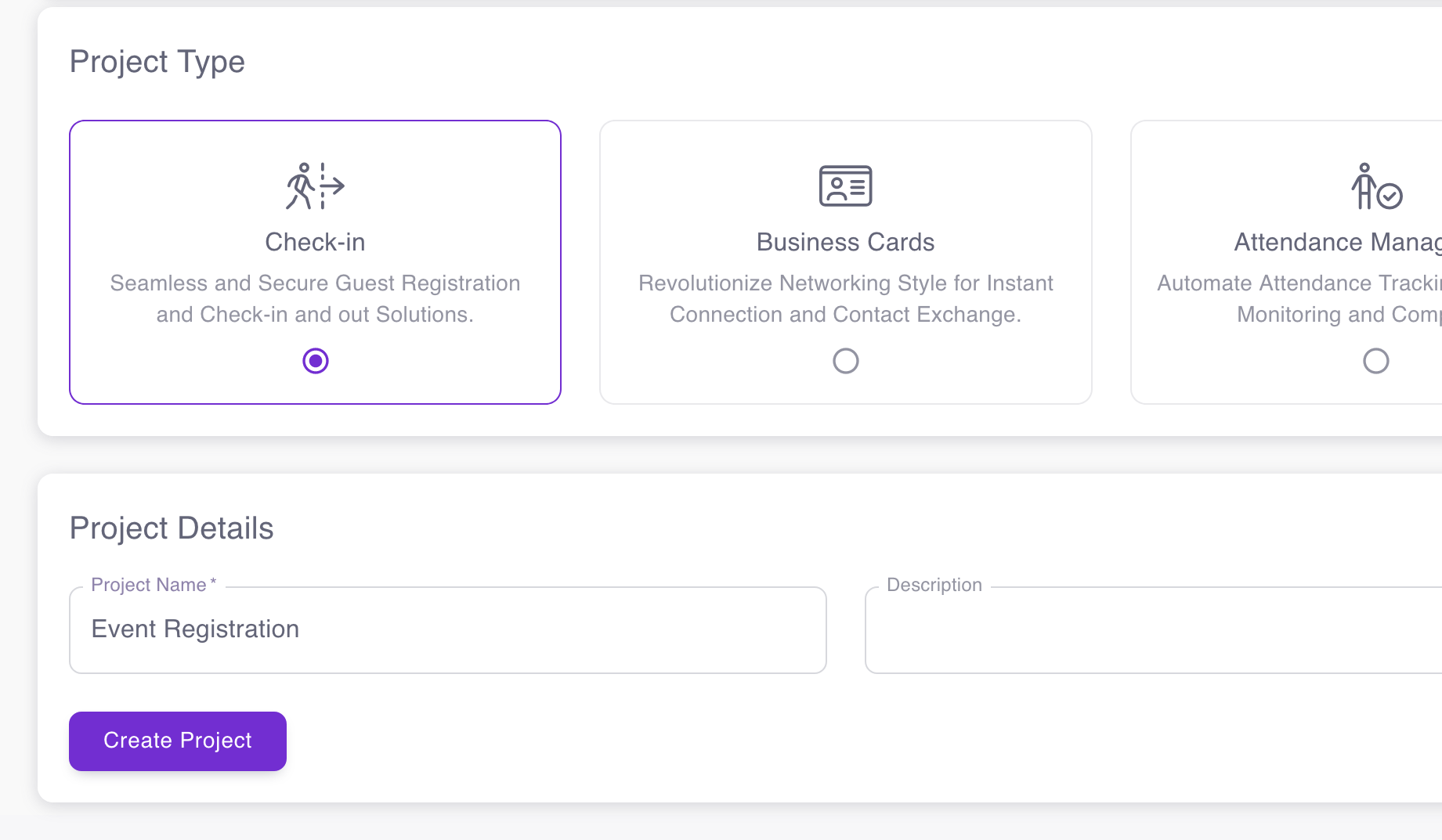
Step 1: Create a New Badge Project
Create a new project and select "Check-In" as your project type. This project type is designed for event registration with badge printing capabilities. The check-in project includes registration forms, QR code generation, badge templates, and attendance tracking—everything you need for professional event badge management. Name your project after your event (e.g., "2026 Annual Conference Badges" or "Q1 Sales Kickoff Name Tags").
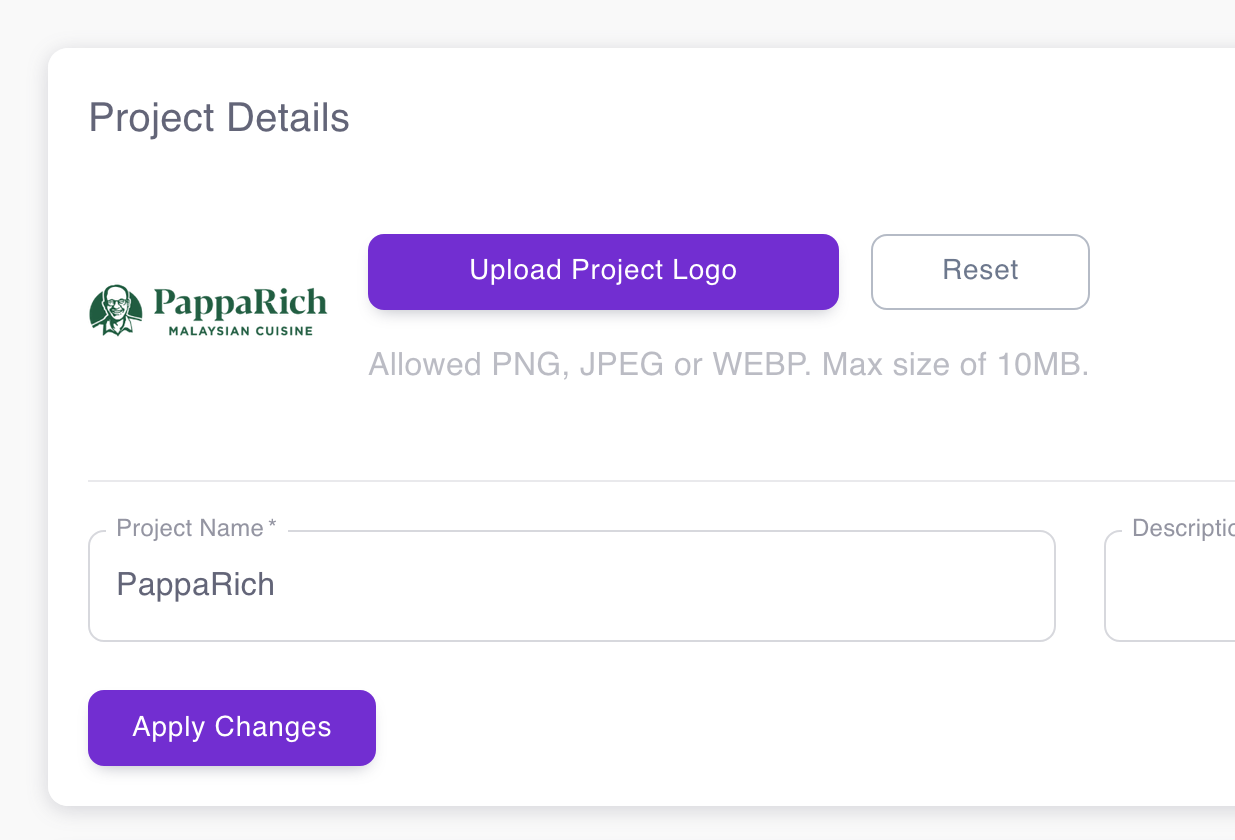
Step 2: Upload Your Event or Company Logo
In the Project Details page, upload your event logo, company logo, or conference branding. This logo appears on all printed badges, giving them a professional, branded appearance. Consistent branding across all attendee badges creates a cohesive visual identity for your event and makes it easy to distinguish between different conferences or sessions if you're running multiple events.
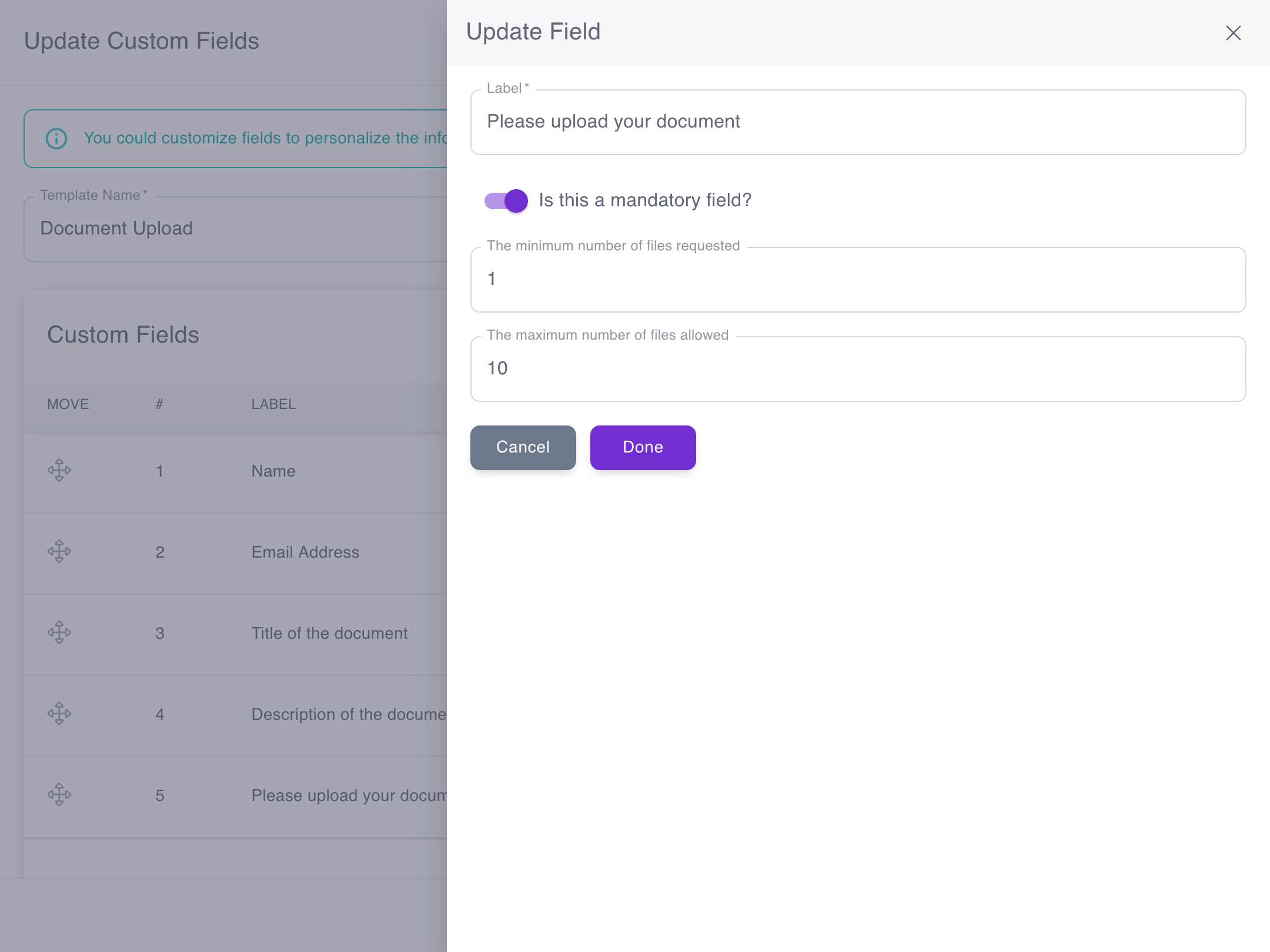
Step 3: Configure Badge Registration Fields
Navigate to the Templates page and customize the fields attendees will complete during badge registration. The critical field for professional badges is the photo upload field—this allows attendees to submit their headshot, which will print on their badge. Common event badge fields include:
- Photo Upload: Required field for attendee headshot (appears on badge)
- Full Name: First and last name (printed prominently on badge)
- Company/Organization: Printed below name for professional networking
- Job Title: Helps attendees identify relevant connections
- Badge Type: Attendee, Speaker, VIP, Sponsor, Staff (displays on badge with different colors)
- Email & Phone: For badge QR code contact sharing (not printed, stored in QR code)
Set minimum and maximum file sizes for photo uploads (recommend 100KB-5MB) and specify accepted formats (JPG, PNG). You can also add custom fields for dietary restrictions, session preferences, or networking interests—though these typically don't print on the badge itself.
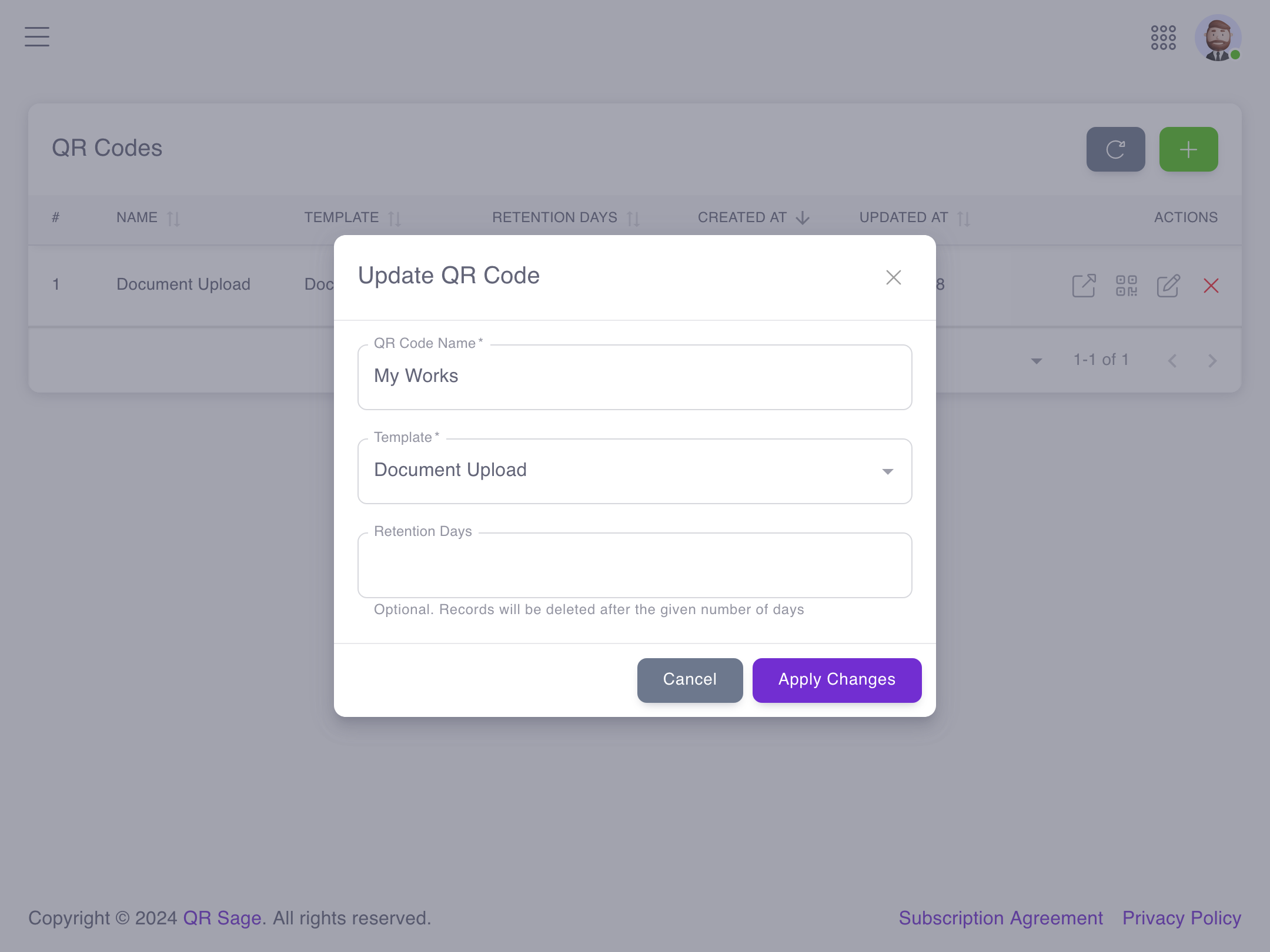
Step 4: Generate Event Badge QR Codes
Navigate to the "QR Codes" page and create a new QR code linked to your badge registration template. This master QR code directs attendees to the registration form where they'll submit their photo and information. When they complete registration, the system generates their unique badge QR code automatically—this is the code that prints ON their badge. You can create multiple registration QR codes if you have different badge types (one for speakers, one for general attendees, one for VIPs) that require different information.
Step 5: Share Badge Registration Form with Attendees
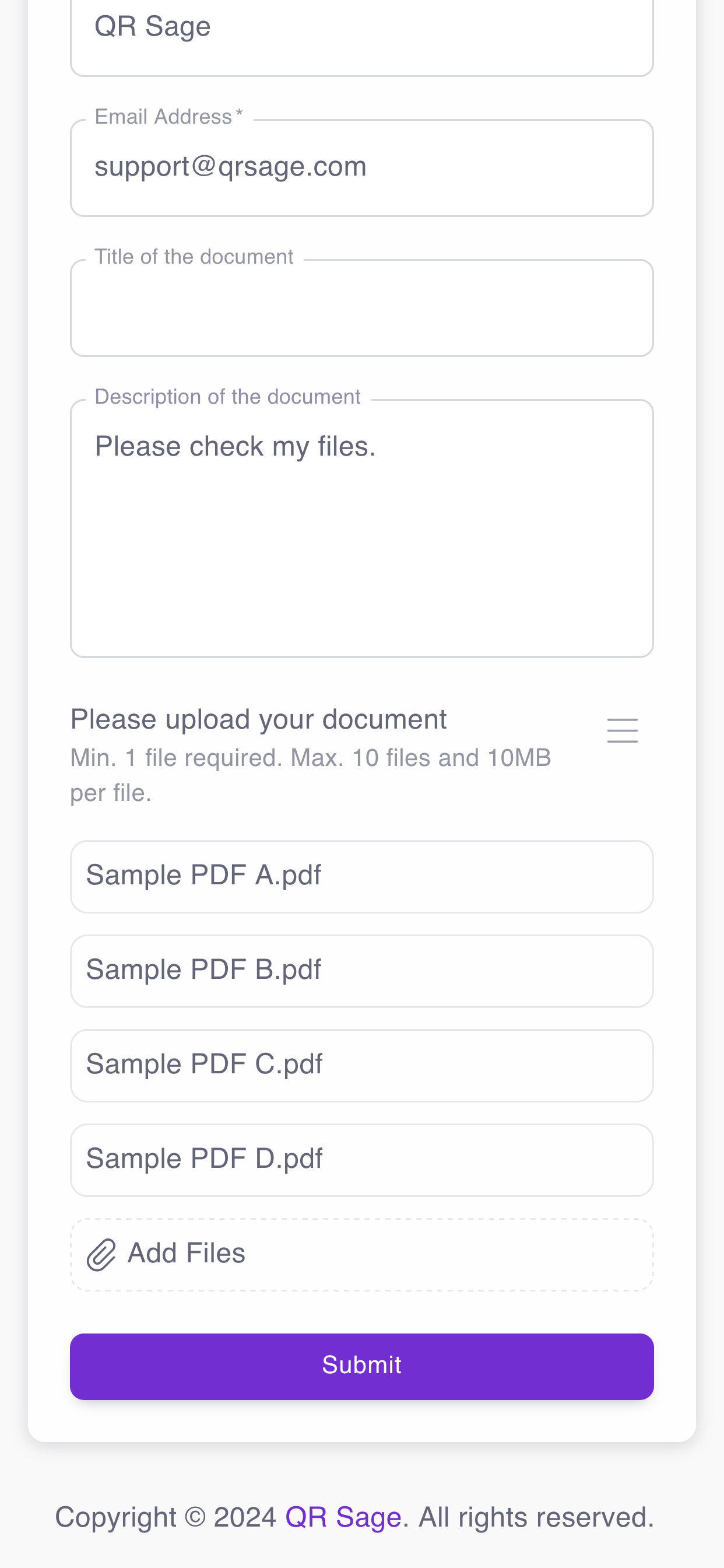
Download your registration QR code and share it through multiple channels so attendees can submit their badge information before the event:
- Email confirmations: Include the badge registration QR code in event confirmation emails
- Pre-event communications: Send reminder emails 1-2 weeks before asking attendees to submit badge photos
- Event website: Embed the registration form or QR code on your event landing page
- On-site kiosks: For walk-ins or those who didn't pre-register, display QR codes at registration desks
When attendees scan the QR code or access the form link, they upload their photo, complete their information, and submit. The system instantly generates their printable badge with QR code and stores it for printing on event day.
Step 6: Print Badges and Track Event Check-In
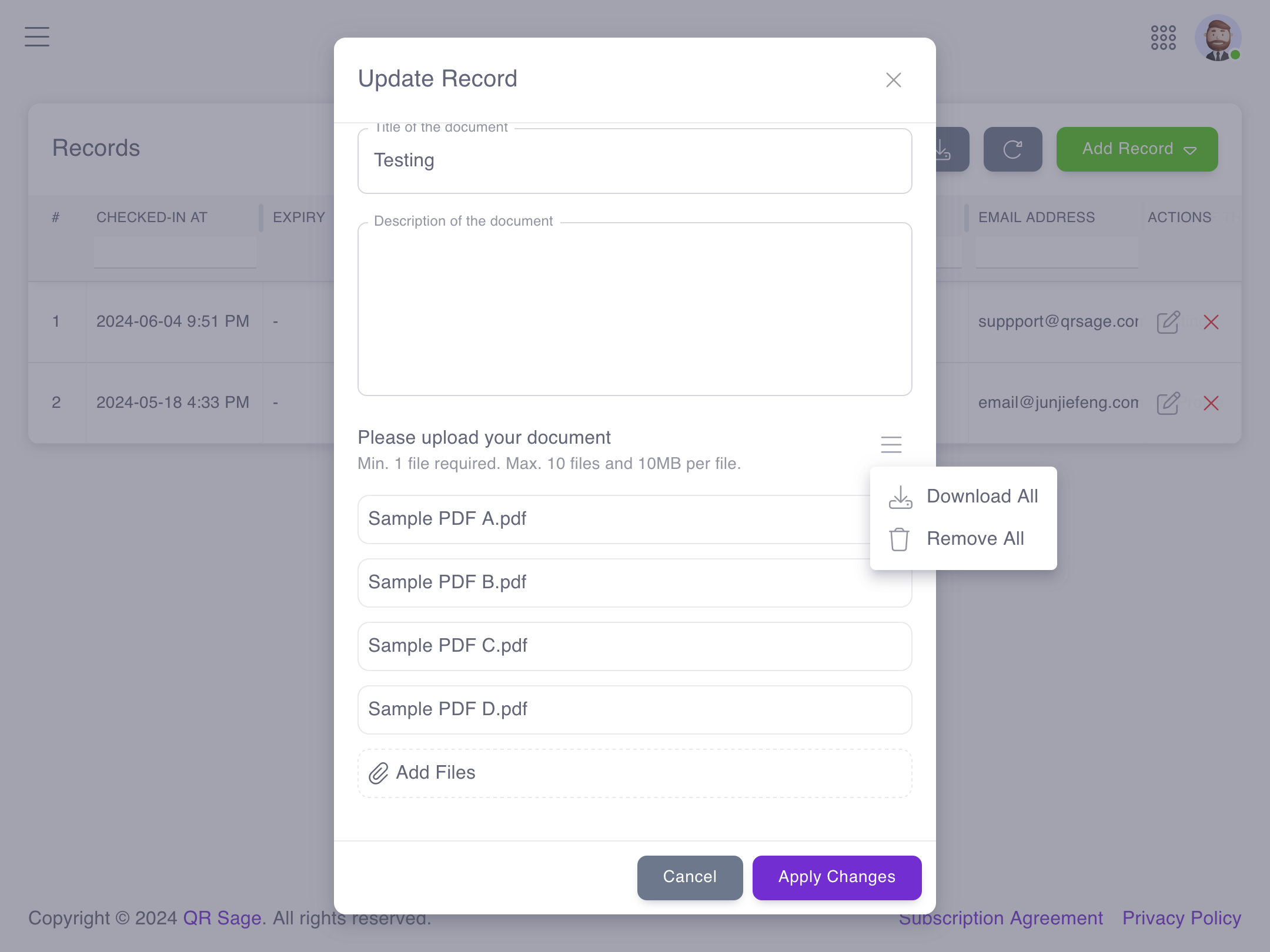
Navigate to the "Records" page to access all registered attendees and their badge data. From here you can: (1) Print all badges before the event for pickup at registration, (2) Print badges on-demand when attendees check in (recommended for last-minute registrations), (3) Export badge data as PDF files for professional printing services, or (4) Download individual badges if someone lost theirs. Each printed badge displays the attendee's photo, name, company, title, badge type, event branding, and their unique QR code. During your event, scan these QR codes for session check-in, access control, and networking—all activity logs in real-time in the Records dashboard.
Benefits of QR Code Event Badges
Automated Badge Generation Saves Hours
Creating 500 event badges manually takes 10-15 hours: downloading attendee lists, importing into design software, formatting each badge, exporting PDFs, printing test sheets. An event badge maker automates this entirely—attendees submit their information once, badges generate automatically with consistent formatting, and you print them in bulk or on-demand. This automation eliminates human error (no more misspelled names or wrong companies on badges) and frees up staff time for other event planning tasks.
Professional Appearance with Attendee Photos
Badges with attendee photos look dramatically more professional than handwritten name tags or text-only printed badges. Photos help attendees recognize each other from badge photos before introducing themselves, improve security (staff can verify the person wearing the badge matches the photo), and create a more personal networking experience. The combination of photo, name, company, title, and event branding gives your conference or corporate event a polished, professional appearance that matches attendee expectations for high-quality business events.
Multi-Function QR Codes for Session Tracking
The QR code on each badge isn't just for show—it serves multiple functions throughout your event. Scan badges at entrance for event check-in and attendance logging. Scan again at individual sessions to track which sessions each attendee joined (critical data for multi-track conferences). Scan for meal access or VIP lounge entry. Enable attendees to scan each other's badges to exchange contact information without business cards. All scanning activity logs in real-time, giving you complete visibility into attendee movement and engagement throughout your event.
Unlimited Badges for Flat Monthly Fee
Professional event badge printing services charge $2-8 per badge including design and printing. For a conference with 500 attendees, that's $1,000-4,000 in badge costs alone. QR Sage's event badge maker charges a flat $10/month for unlimited badge generation—create badges for 50 people or 5,000 people, the price stays the same. You still need to print the badges (ink and badge card stock cost about $0.50-1.00 per badge), but you save thousands on design, setup, and per-badge fees that traditional services charge.
Ready to create professional event badges with QR codes for your next conference or corporate event? QR Sage has powered badge creation for over 2,000 events, printing professional name badges with attendee photos, company information, and scannable QR codes. From small workshops with 30 attendees to large-scale conferences with 2,000+ participants, the platform scales instantly without per-badge fees.
Get started free—no credit card required. Create your first event badge template in under 10 minutes. Set up photo upload registration, customize badge fields with your branding, and generate printable badges with QR codes automatically. Unlimited badges for $10/month—no per-badge charges.